Dear All,
I haven't been updating this page in some time, am writing to you all to let you know that I have sold my Asus P320 and move onto an Android phone LG Optimus One.
It was quite an amazing two years with this phone and am sure many of you will also slowly move on to others. Till then I will still moderate comments on the blog to prevent spam from getting added.
Cheers !!
Monday, November 29, 2010

Sunday, April 11, 2010
Asus P320 Windows Mobile 6.5 ROM Build 23549
Manas Girdhar has been really busy churning out the latest ROMs for the Asus P320. There has been frenzied activity with various builds adding new feature and fixing the bugs that arise out of the newer builds.
The current version of ROM for Asus P320 is Windows Mobile 6.5.5 Build 23549. Couple of files from the older build have been used but Manas assures us that the kernel used in the build is the 23549 one only.
Based on the feedback received it seems reasonably stable. I however have yet to upgrade to the latest build, probably will do it sometime over the weekend. I have been on the 23085 build for the last couple of months and beside the late ringing of the phone has been phenomenal. The details of that build is available here
Asus P320 Windows Mobile 6.5 ROM Build 23085
Some of the users have mentioned that the new ROM solves the issues that require the Ks20.exe patch as well as the late ringing problem. I will update on this post with my personal experience.
The device is to said to boot up with
Free Ram:23 Mb
Free Device Storage:23 Mb
I will also added screen shots over the weekend for a better look and feel. If any of you people do try it out before I do, do post your comments here.
The link of the ROM is here
http://www.mediafire.com/?vtqe4ozqiwd
The Link of the original posting about this ROM is here
http://winmo.forumpro.eu/p320-f5/wm-655-build-23549-fixed-and-office-build-added-t94.htm
If you do flash this, it on your own risk, however here are a couple of useful pages for everyone who decides to flash the Asus P320 with a Windows 6.5 ROM
In case of missed call problems with this build. Have posted solution for same here
http://p320.blogspot.com/2009/11/asus-missed-call-problem-windows-mobile.html
UPDATE: I have added a separate blog on enabling the weather plugin for Windows Mobile 6.5 located here
http://p320.blogspot.com/2009/12/asus-p320-wm-65-weather-plugin.html
UPDATE: Incase of any IMEI problems have posted a solution of the same here
http://p320.blogspot.com/2009/12/asus-p320-imei-fix.html
UPDATE: Incase of bluetooth not able to receive files, a solution of the same is available here
http://p320.blogspot.com/2009/12/asus-p320-bluetooth-problem-wm-65.html
The main article on the phone is located here. You might pick up some useful info if you are an owner ...
http://p320.blogspot.com/2008/11/asus-p320-how-what-where.html
The current version of ROM for Asus P320 is Windows Mobile 6.5.5 Build 23549. Couple of files from the older build have been used but Manas assures us that the kernel used in the build is the 23549 one only.
Based on the feedback received it seems reasonably stable. I however have yet to upgrade to the latest build, probably will do it sometime over the weekend. I have been on the 23085 build for the last couple of months and beside the late ringing of the phone has been phenomenal. The details of that build is available here
Asus P320 Windows Mobile 6.5 ROM Build 23085
Some of the users have mentioned that the new ROM solves the issues that require the Ks20.exe patch as well as the late ringing problem. I will update on this post with my personal experience.
The device is to said to boot up with
Free Ram:23 Mb
Free Device Storage:23 Mb
I will also added screen shots over the weekend for a better look and feel. If any of you people do try it out before I do, do post your comments here.
The link of the ROM is here
http://www.mediafire.com/?vtqe4ozqiwd
The Link of the original posting about this ROM is here
http://winmo.forumpro.eu/p320-f5/wm-655-build-23549-fixed-and-office-build-added-t94.htm
If you do flash this, it on your own risk, however here are a couple of useful pages for everyone who decides to flash the Asus P320 with a Windows 6.5 ROM
In case of missed call problems with this build. Have posted solution for same here
http://p320.blogspot.com/2009/11/asus-missed-call-problem-windows-mobile.html
UPDATE: I have added a separate blog on enabling the weather plugin for Windows Mobile 6.5 located here
http://p320.blogspot.com/2009/12/asus-p320-wm-65-weather-plugin.html
UPDATE: Incase of any IMEI problems have posted a solution of the same here
http://p320.blogspot.com/2009/12/asus-p320-imei-fix.html
UPDATE: Incase of bluetooth not able to receive files, a solution of the same is available here
http://p320.blogspot.com/2009/12/asus-p320-bluetooth-problem-wm-65.html
The main article on the phone is located here. You might pick up some useful info if you are an owner ...
http://p320.blogspot.com/2008/11/asus-p320-how-what-where.html
Wednesday, December 16, 2009
Asus P320 Bluetooth Problem WM 6.5
Since upgrading to Windows Mobile 6.5 I along with others have not been able to receive files via bluetooth. This has been true for the 23016 / 23085 versions of WM 6.5 that have been release for this device at the below locations
WM6.5 build 23016
WM 6.5 build 23085
However recently I came across a post that mentioned how to fix this problem courtesy Hdubli. It requires to make he following registry change.
If you don't know how to do this, I would recommend you go to the following post and download the registry editor
http://p320.blogspot.com/2009/02/mobile-registry-editor-for-asus.html
Once you have the registry editor, carry out an active sync with your device and run the registry editor. You should be able to see the following screen.

Navigate to the following key
HKEY_LOCAL_MACHINE --> Software --> Microsoft --> Obex

Right click the screen and say new String Value

Enter the Value Name protocols and Value Data as bth,irda

Say ok, and you need to restart your device, bluetooth should now be working !
Hope this helps, do drop me a comment, would love to hear from you, if your feeling generous you could donate a dollar :)
The main article on this phone is located here ..
http://p320.blogspot.com/2008/11/asus-p320-how-what-where.html
WM6.5 build 23016
WM 6.5 build 23085
However recently I came across a post that mentioned how to fix this problem courtesy Hdubli. It requires to make he following registry change.
If you don't know how to do this, I would recommend you go to the following post and download the registry editor
http://p320.blogspot.com/2009/02/mobile-registry-editor-for-asus.html
Once you have the registry editor, carry out an active sync with your device and run the registry editor. You should be able to see the following screen.

Navigate to the following key
HKEY_LOCAL_MACHINE --> Software --> Microsoft --> Obex

Right click the screen and say new String Value

Enter the Value Name protocols and Value Data as bth,irda

Say ok, and you need to restart your device, bluetooth should now be working !
Hope this helps, do drop me a comment, would love to hear from you, if your feeling generous you could donate a dollar :)
The main article on this phone is located here ..
http://p320.blogspot.com/2008/11/asus-p320-how-what-where.html
Sunday, December 13, 2009
Asus P320 Reset Options Hard Reset / Soft Reset
Some people have requested this information so I thought a post on it may help

A. Soft reset
Poke the hole at the bottom of the device with the stylus.
OR
Remove the battery, put it back and start it, do this only if the poke doesn't work.
B. Hard reset
Resetting your phone will remove all data from memory and restore the phone back to the factory default settings.
1. Tap Start > Settings > System tab > Default Settings.
2. Key in "1234" to confirm that you want to restore default settings and press OK.
3. Tap OK.
The phone will restart automatically after it is reset.
OR
Press Right Soft Key and tap Reset ( poke the bottom with the stylus) at the same time
C. Flash Reset
Use this option when you need to flash the phone with the new version
Press the Volume down button and hold while tapping reset ( poke the bottom with the stylus)
The main article on this phone is located here
http://p320.blogspot.com/2008/11/asus-p320-how-what-where.html
A. Soft reset
Poke the hole at the bottom of the device with the stylus.
OR
Remove the battery, put it back and start it, do this only if the poke doesn't work.
B. Hard reset
Resetting your phone will remove all data from memory and restore the phone back to the factory default settings.
1. Tap Start > Settings > System tab > Default Settings.
2. Key in "1234" to confirm that you want to restore default settings and press OK.
3. Tap OK.
The phone will restart automatically after it is reset.
OR
Press Right Soft Key and tap Reset ( poke the bottom with the stylus) at the same time
C. Flash Reset
Use this option when you need to flash the phone with the new version
Press the Volume down button and hold while tapping reset ( poke the bottom with the stylus)
The main article on this phone is located here
http://p320.blogspot.com/2008/11/asus-p320-how-what-where.html
Saturday, December 12, 2009
Asus P320 IMEI fix
For the unfortunate few of us who have managed to screw up our phones while flashing to Windows 6.5 by losing the IMEI information of the phone there is now a solution.
Kalpeshmist over at Asus p320 Winmo forum has found a way to restore the Asus P320 with the original IMEI number.
I have mirrored the files that are hosted there. The instructions are in the readme that is part of the download itself.
http://www.mediafire.com/file/2z3dynzmnn1/P320 IMEI Fixer.zip
Once you get the updated GSM.BIN you should flash it along with your FLASH.BIN for it to work. Many people have responded postively saying it works, needless to say your doing on your own risk.
The link to the thread is available here
http://winmo.forumpro.eu/p320-f5/fix-p320-imei-fixer-t69.htm
The main article on this phone is located here
http://p320.blogspot.com/2008/11/asus-p320-how-what-where.html
Details on using Windows 6.5 on this phone is available here
http://p320.blogspot.com/2009/11/asus-p320-windows-mobile-65-rom-build.html
Kalpeshmist over at Asus p320 Winmo forum has found a way to restore the Asus P320 with the original IMEI number.
I have mirrored the files that are hosted there. The instructions are in the readme that is part of the download itself.
http://www.mediafire.com/file/2z3dynzmnn1/P320 IMEI Fixer.zip
Once you get the updated GSM.BIN you should flash it along with your FLASH.BIN for it to work. Many people have responded postively saying it works, needless to say your doing on your own risk.
The link to the thread is available here
http://winmo.forumpro.eu/p320-f5/fix-p320-imei-fixer-t69.htm
The main article on this phone is located here
http://p320.blogspot.com/2008/11/asus-p320-how-what-where.html
Details on using Windows 6.5 on this phone is available here
http://p320.blogspot.com/2009/11/asus-p320-windows-mobile-65-rom-build.html
Thursday, December 3, 2009
Asus P320 WM 6.5 Weather plugin
If you have upgraded to Windows Mobile 6.5 , details given here
http://p320.blogspot.com/2009/11/asus-p320-windows-mobile-65-rom-build.html
you probably would want to have the cool weather plugin that is available for this version as seen below.

On sliding right it give further daywize details as well
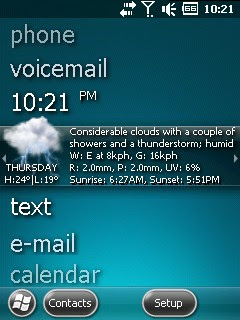
In order to get this to work you need to first download the required install files. I have kept the name of the file the same to give due credit to the creators without which this would not be possible.
The file is located here
It is Showaco-Titanium-Weather-QVGA-by-Mnemonique-v3e-M2D-Icons.cab
http://www.mediafire.com/file/w2izdnimmmz/Showaco-Titanium-Weather-QVGA-by-Mnemonique-v3e-M2D-Icons.cab
Now once you have the file you need to follow the installation procedure carefully.
1. Make sure you turn off the Windows default as part of the home screen. To do this you need to navigate to Start --> Settings --> Home
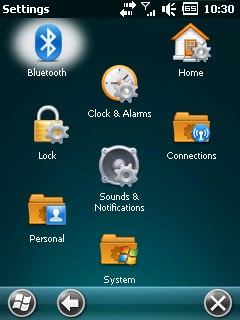
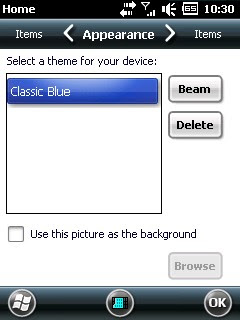
2. It will load up with the Appearance Tab, Move to the Items tab, its located on the right of appearance
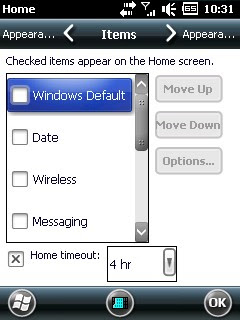
3. Make sure you uncheck the Windows default
4. Now install the cab file you have downloaded earlier, make sure that you install on the device and not on the SD Card
5. It may ask for a restart, complete the restart.
6. Now go back to Start --> Settings --> Home and enable the Windows Default that you disabled in step 3
7. You should now see the weather plugin on your main screen, just below the time. Navigate there and select setup
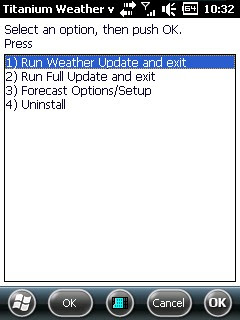
8. You should see the following options. Make sure you select Option 3, Forecast Options/Setup
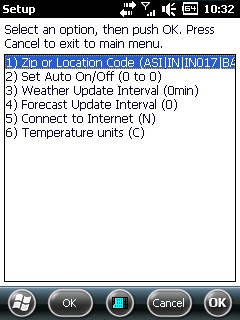
9. In the sub menu that now pops up , you need to select Option 1 to enter your location, what the use otherwise :)
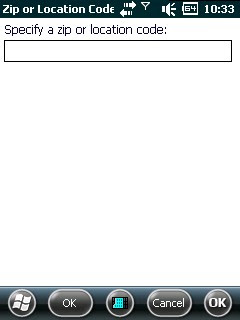
10. Almost there, now you need to just enter the required code in the below screen and your done !!
Oh wait , you don't know what the code is for your city, that could be quite a pain :) Have a look at the codes available in the file below hopefully it should contain your city information. The zip file contains a text file with all the cities
http://www.mediafire.com/file/mnuzomzm2od/Weather Location Database.zip
11. Now just run option 1 in the setup screen and you should have the latest weather on your phone !
Hope that was helpful, do drop me a comment if it was ! If your feeling generous you could donate a dollar via paypal :)
The main article for this device is located here, it would be pretty useful if you are an owner !
http://p320.blogspot.com/2008/11/asus-p320-how-what-where.html
http://p320.blogspot.com/2009/11/asus-p320-windows-mobile-65-rom-build.html
you probably would want to have the cool weather plugin that is available for this version as seen below.

On sliding right it give further daywize details as well

In order to get this to work you need to first download the required install files. I have kept the name of the file the same to give due credit to the creators without which this would not be possible.
The file is located here
It is Showaco-Titanium-Weather-QVGA-by-Mnemonique-v3e-M2D-Icons.cab
http://www.mediafire.com/file/w2izdnimmmz/Showaco-Titanium-Weather-QVGA-by-Mnemonique-v3e-M2D-Icons.cab
Now once you have the file you need to follow the installation procedure carefully.
1. Make sure you turn off the Windows default as part of the home screen. To do this you need to navigate to Start --> Settings --> Home

2. It will load up with the Appearance Tab, Move to the Items tab, its located on the right of appearance

3. Make sure you uncheck the Windows default

4. Now install the cab file you have downloaded earlier, make sure that you install on the device and not on the SD Card
5. It may ask for a restart, complete the restart.
6. Now go back to Start --> Settings --> Home and enable the Windows Default that you disabled in step 3
7. You should now see the weather plugin on your main screen, just below the time. Navigate there and select setup
8. You should see the following options. Make sure you select Option 3, Forecast Options/Setup

9. In the sub menu that now pops up , you need to select Option 1 to enter your location, what the use otherwise :)

10. Almost there, now you need to just enter the required code in the below screen and your done !!

Oh wait , you don't know what the code is for your city, that could be quite a pain :) Have a look at the codes available in the file below hopefully it should contain your city information. The zip file contains a text file with all the cities
http://www.mediafire.com/file/mnuzomzm2od/Weather Location Database.zip
11. Now just run option 1 in the setup screen and you should have the latest weather on your phone !
Hope that was helpful, do drop me a comment if it was ! If your feeling generous you could donate a dollar via paypal :)
The main article for this device is located here, it would be pretty useful if you are an owner !
http://p320.blogspot.com/2008/11/asus-p320-how-what-where.html
Thursday, November 19, 2009
Asus Missed Call Problem Windows Mobile 6.5
If you are one people who flashed to Windows Mobile 6.5 but have a problem that your missed calls are not getting recorded properly. Often it will show a much older call that you have missed instead of the latest one.
I have faced these issues across various builds of Windows Mobile 6.5 such as 23004 / 23016 / 23085 to the extent I often went back to the stock version of 6.1 because I couldn't afford to not know who had called me.
I would like to credit Rayraven from the Winmo forum for helping me resolve this. By adding a patch file to the windows startup this solves the issue. The file is called ks20.exe as it would built for that phone where users faced the same problem.
The original file is posted on Xda, I have however mirrored it here for ease of use. The program on running will consume little bit of system resources and will only be visible in the task manager process view as seen below.


The file is located here
http://www.mediafire.com/?cz7bevlgf7qxu6s
Put it in the following location
My Device --> Windows --> Startup
The article about flashing to windows mobile 6.5 is located here
http://p320.blogspot.com/2009/11/asus-p320-windows-mobile-65-rom-build.html
The main page about this blog is available here
http://p320.blogspot.com/2008/11/asus-p320-how-what-where.html
I have faced these issues across various builds of Windows Mobile 6.5 such as 23004 / 23016 / 23085 to the extent I often went back to the stock version of 6.1 because I couldn't afford to not know who had called me.
I would like to credit Rayraven from the Winmo forum for helping me resolve this. By adding a patch file to the windows startup this solves the issue. The file is called ks20.exe as it would built for that phone where users faced the same problem.
The original file is posted on Xda, I have however mirrored it here for ease of use. The program on running will consume little bit of system resources and will only be visible in the task manager process view as seen below.


The file is located here
http://www.mediafire.com/?cz7bevlgf7qxu6s
Put it in the following location
My Device --> Windows --> Startup
The article about flashing to windows mobile 6.5 is located here
http://p320.blogspot.com/2009/11/asus-p320-windows-mobile-65-rom-build.html
The main page about this blog is available here
http://p320.blogspot.com/2008/11/asus-p320-how-what-where.html
Subscribe to:
Posts (Atom)
